facebook pixel
Canon’s 4K NDI PTZ Camera is On the Bench

Canon’s 4K NDI PTZ Camera is On the Bench

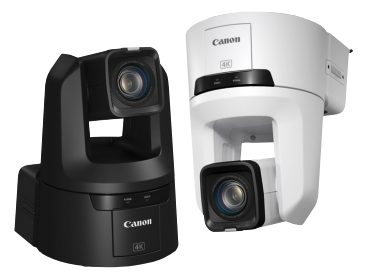
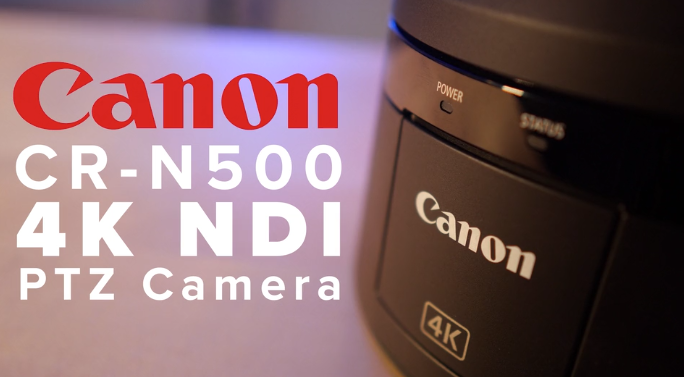
The Exertis Broadcast team put Canon’s CR-N500 (4K NDI) PTZ camera On the Bench and here’s what they found inside…

CR-N500

Canon has over 80 years of experience in optics and image capture, and that experience shows in their latest innovation: The CR-N500.

The CR-N500 produces incredible 4K and HD image quality with the combination of a 1” CMOS sensor and DIGIC DV 6 image processor. These core components provide the image-processing power and speed that enables 4K UHD video acquisition, image stabilization and precise Dual Pixel CMOS AF. On-air pan and tilt movement is possible thanks to the smooth and responsive pan and tilt mechanism equipped with the CR-N500.

Highlighted specs:
  • 1 inch, 4K CMOS sensor
  • 15x optical 20x digital zoom
  • 3 Built-in Neutral Density filters
  • Focal length of 8.3 – 124.5 mm (a 25.5 to 382.5mm 35mm equivalent)
  •  2.8 – 4.5 Aperture, enough for a creamy Bokeh in certain applications
  • 73 Degree Field of Horizontal view, 45 Degrees vertical
  • Dual XLR with phantom power
  • Power over PoE
  • 3G SDI, and 4k HDMI
  • and IT’S NDI HX READY!

Things we thought were most amazing.

Razor Sharp, Fast Focusing on near and far subjects. Fast movements followed by ultra-fast focus. Awesome Low-light performance and amazing color rendering.

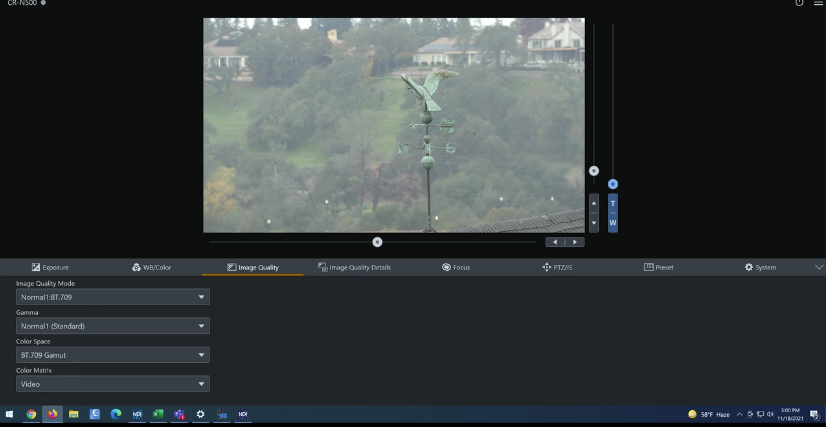
We found even more awesome features in the Canon Web UI. LUT support, raw imaging modes, and all the image controls someone who has used a cinema camera or a Canon DSLR would be looking for. This is extremely rare for a PTZ camera. What’s even crazier? It’s priced lower than any other 1” sensor PTZ camera out there. This is what happens when canon takes years of experience and brings it to a PTZ camera.

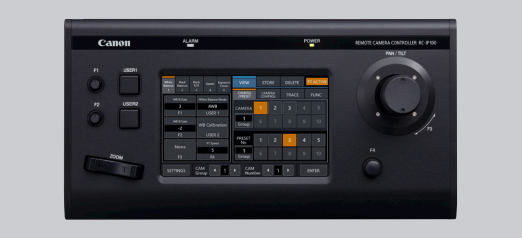
If you are wondering if Canon has a dedicated controller for this camera, the answer is: Yes – of course they do. It’s what I’ve been using this whole time to control the camera itself. It’s a very responsive and easy-to-use touch screen controller makes tweaking the camera orientation very simple and lets you tap into one of my favorite features easily. That feature is called “trace”. Now, this and most other PTZ cameras have positional presets. Meaning, I push a button in the UI or on a controller that moves my camera to exactly where I want it to be. Trace allows you to record a complex camera movement and then allow you to replay it via a preset. If I want to record a slow pan and zoom across, I can record that movement. Then, move the camera somewhere else, and recall that movement I recorded whenever I want.

Canon-standard components, and a robust feature set aimed at creators who are used to cinematography, make CR-N500 the ultimate choice in PTZ camera. Houses of Worship, theater companies, sports venues, and concert venues could all benefit from the raw power and high fidelity image quality. Plus, camera operators and content creators looking for PTZ functionality with the same quality they’ve come to expect from Canon, need look no further than the Canon CRN-500.

NDI Bridge explained
canon cr-n500 closeup
canon web UI
RC-IP100-remote camera controller

RC-IP100 Remote Camera Controller

Canon’s RC-IP100 Remote Camera Controller provides IP control for up to 99 supported Canon cameras. An additional Canon camera can be controlled through the serial port.
EBP: Why Vimeo Enterprise over YouTube?

EBP: Why Vimeo Enterprise over YouTube?

In this episode of the Exertis Broadcast Podcast, Nick Smith, Rick Puleo, and Matt Bain discuss why organizations benefit from choosing Vimeo Enterprise over other VOD/Streaming Platforms.
Vimeo logo
Vimeo livestream to facebook
NDI Bridge explained

TOP REASONS YOUR ORGANIZATION SHOULD CHOOSE VIMEO ENTERPRISE!
With Vimeo Enterprise, your organization retains control over your content, decides who can watch your content, and what else they see on your company page.

NO UNWANTED ADS
No competitor ads displayed before, after, or around your content.

NO SUGGESTED VIDEOS
No competitor videos displayed anywhere near your content or on your channel.

NO RAMDOM AUTO PLAY
No cat videos to automatically play after your content.

ROBUST ANALYTICS
Know exactly who is viewing your content, from where, and for how long.

BEAUTIFUL BRANDING
Custom branding that makes your channel stand out.

SSO INTEGRATION
Make sure your content is secure to only your audience.

LIVESTREAM ENGAGEMENT TOOLS
Polling, Q&A, Graphic Overlays.

TEAM MANAGEMENT
Manage your team and team permissions.

Bonus: STREAMING CONTROL
Livestream fo Vimeo and then, distribute (recast) the video to YouTube, Facebook, LinkedIn, or any other account via RTMP.

Vimeo’s enterprise tools give you the power to effortlessly and securely share an all-hands, updates, learnings, and more, in real time, anywhere.
vimeo enterprise tools
EBP: NDI Bridge – Everything You Need To Know

EBP: NDI Bridge – Everything You Need To Know

NDI® BRIDGE IS HERE!!!

In this episode of the Exertis Broadcast Podcast, Nick Smith, Rick Puleo, and Jordan Friday all discuss what they’ve learned so far about their own personal experiences using NDI Bridge. From remote video production to remote audio mixing and streaming, the guys talk about many of the new possibilities NDI® Bridge can potentially create for content creators in the future!
NDI-showcase-logo-blk
Vimeo livestream to facebook
NDI Bridge explained

Key Info & Guidance

NDI Bridge is a revolutionary tool allowing users to treat the entire connected world your studio. We want to provide you with as much information and guidance as possible, to ensure you are getting the very best out this incredible tool.

  • When testing NDI Bridge please ensure that your network connection has sufficient sustained network bandwidth to maintain the video streams that you wish to use with reasonable network jitter. You can use a tool like iPerf to test your connection speed.
  • NDI Bridge supports all NDI features; Video, Alpha Channel, Multichannel Audio, Metadata, KVM, Tally, PTZ Support.
  • One or more users can join an NDI Bridge connection, enabled by a single NDI Bridge Host.
  • NDI Bridge makes it easy to access the Public IP/Port values that must be shared with clients wishing to join the Bridge….

How to Successfully Configure Your Port Forwarding

NDI® greatly simplifies sending high quality, low–latency video across your network. In more complex cases, though, another factor may need your attention.

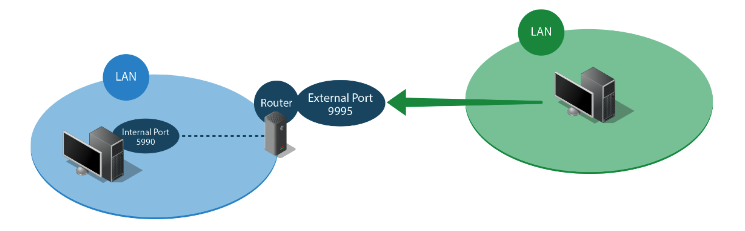
To extend beyond the local network, applications (such as NDI Bridge) use network communication ports. Connecting to a local application from an external network requires targeting the correct port, and that your network router is set up to accept traffic at that port.

This is much like an office with one main telephone number, but many extensions. On a wide area network (WAN) like the Internet, the ‘public IP number’ corresponds to the main telephone number. Your firm provides a list of extension numbers, each matching one phone. Likewise, your network router exposes certain ports for external access. If the network router doesn’t expose a port, no-one can connect to it.

The NDI Bridge Host finds your public IP address automatically, and listens for traffic arriving at the port you specify in its configuration app. It cannot, however, automatically configure the router to allow traffic from the WAN to reach that port. (By default, routers expose a limited set of common ports, and are manually configured to use other ports for specific purposes.)

Port Forwarding

Exposing a port (or a range of ports) so an external network can communicate with the port used by internal application is called “port forwarding.”

NDI Bridge port forwarding

To configure port forwarding, you just need to know…


Create the ULTIMATE 4×4 Video Wall with the Gefen 4K VWC!

Create the ULTIMATE 4×4 Video Wall with the Gefen 4K VWC!

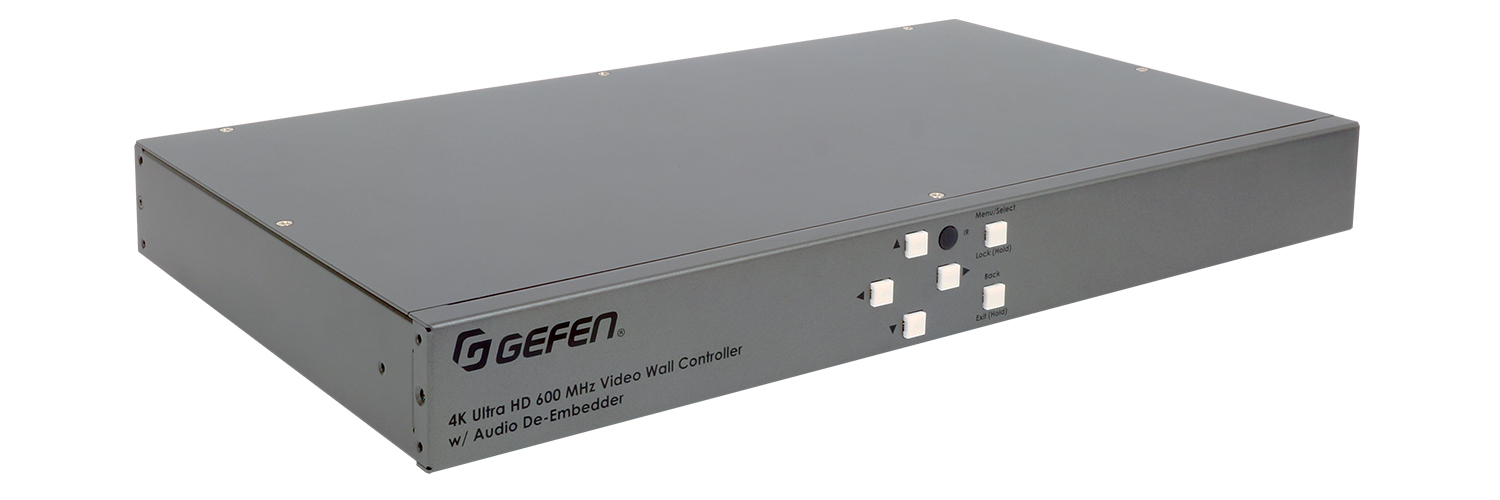
EXT-UHD600A-VWC-14 | Gefen’s 4K Ultra HD 600 MHz Video Wall Controller with Audio De-Embedder

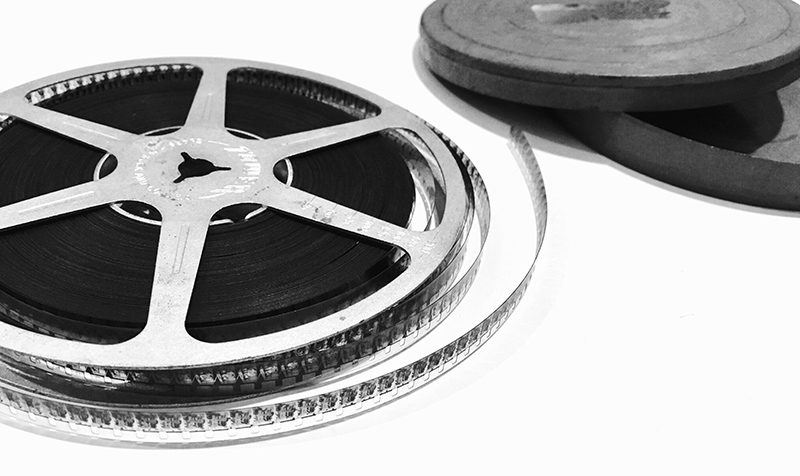
In 1927, visionary French director, Abel Gance, wanted to put audiences right inside the action of his upcoming movie “Napoleon”. The method he devised to film the final sequence of “Napoleon” used three 35mm cameras, positioned side-by-side. The results were then projected in the theater by three side-by-side projectors. This triptych sequence was later called “Polyvision”, and it was MASSIVE. The equivalent of 16,000 pixels wide!

An image of that size was unlike anything the world had ever seen, but it had drawbacks. The largest of which was the issue of seams between the images. Plus, the need to perfectly align the cameras on set, as well as the projectors in the theater. Because of the added configuration and lack of theater compatibility, not long after the film was released, Gance was forced to removed the Polyvision portion of the movie and replace it with a more standard aspect ratio cut. However, the notion of making larger than life video presentations, remains to this day. In part, thanks to Gance’s innovation.

old film reels

Gefen was able to bring this century-old concept into the 21st century with the 4K Ultra HD 600 MHz 1×4 Video Wall Controller with Audio De-Embedder.

So, what does it do?

It allows you to split a 4K signal into 1080p signals (up to four) to make a much larger image across 4 displays. Simply plug in a digital signage player, like BrightSign, a media player, a decoder, or heck a good old-fashioned Mac or PC into the HDMI in of the 1×4, and then, plug in up to 4 displays to create one unified image, across all of the displays, that doesn’t lose visual fidelity.

Now, you might be asking yourself, why do this instead of buying a larger 4K display? The largest commercially available 4K televisions are usually about 2-3 grand for an 85 inch at the absolute largest (We’re excluding Samsung’s “the Wall”). Projectors don’t always play nice with poorly-lit spaces, and LED walls are great, but again are pricey and require very specific hardware to install. Instead, you can put four 40 inch, 55 inch, 65 inch, or even larger displays next to each other, and have your very own video wall that’s being fed with one video source.

To configure your video wall, use the buttons on the front panel of Gefen’s VWC to tweak each display. Alternatively, you can sign into the 1×4’s web client for even easier management. Choose whatever kind of display configuration you want – even a custom one if you need it! Bezel compensation, global rotation, and color correction is all handled on the 1×4. De-embed the audio that’s in your screen content and pipe it out of the built in RCA jacks into an outboard DSP or mixer to play through an audio system. It’s all easily handled on the 1×4.

To push the 1×4 even further, you can actually show 4 different images or videos at the same time, with a little bit of preparation. Remember, all the 1×4 is doing is taking a 3480×2160 image and cutting it into 4 equal quadrants. Try this. Open up Adobe After Effects or Premiere, or any NLE for that matter. Make a new 2160p sequence, and align your 4 designs or videos into each of the 4 quadrants of the sequence. This process can be done in a myriad of ways, but now you have individual control over all 4 displays, and you can always switch back to treating all four displays like one whenever you want. Just put full screen content above the per monitor content in your editor and voila, you’re back to the Gefen’s intended use case.

USE CASES

The Gefen 1×4 has tons of potential use cases. (This is where it gets fun.) Obviously, this solution would work great in a conference or board room as your main display. Combat poor lighting, power and structural restraints by mounting 4 TVs in a quad configuration, and then, plug in a video conferencing or collaboration solution into the HDMI IN, and you’re ready to wow everyone in the room.

Use VWCs on a virtual production set to drive window-like background displays (New York stock footage not included). Use one in a restaurant or kiosk to display menus and promo videos. Use them to display branded signage at an expo booth to show schedules right along side product highlights and sponsored content. Speaking of Expo Booths… Connect 1 Gefen 1×4 to large displays in a cube configuration to create a completely immersive experience for anyone who steps inside it. The possibilities are only limited by your creativity.

The 4K Ultra HD 1×4 is an incredible device for visionaries looking to channel their inner Gance and push the limits of what’s traditionally thought as possible for displaying content. Expand not only the size of your content, but how it’s percieved by your clients and customers. So get out there and design your next visual masterpiece with the Gefen 1×4!

Gefen
Gefen Video Wall Controller

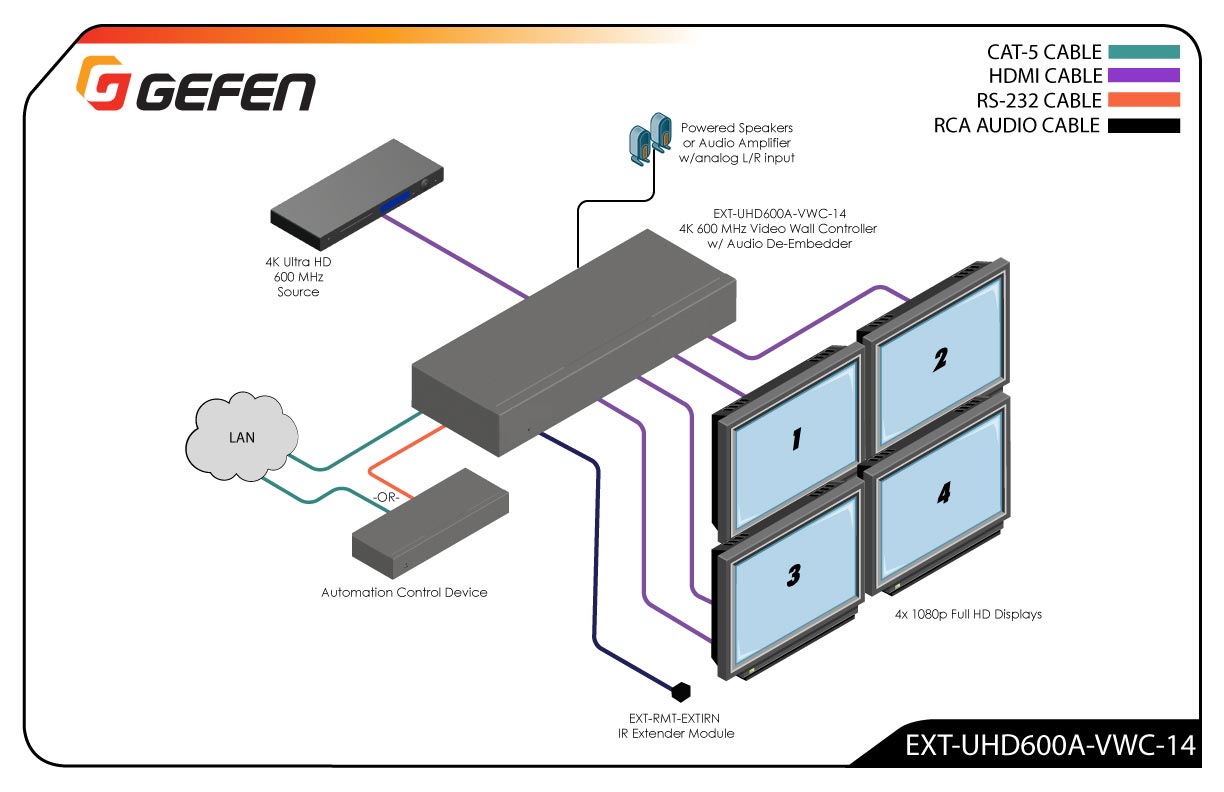
VWC DIAGRAM
Click image to enlarge.

Gefen VWC diagram

This Video Wall Controller creates a picture on any combination of up to four Hi-Def displays.

The Gefen 4K Ultra HD 600 MHz Video Wall Controller is the perfect solution for entertainment and digital signage applications in retail outlets, clubs, trade shows, control centers, building lobbies, and other venues where a large, high quality 4K picture is required. It accepts a single 4K 60 Hz 4:4:4 (18 Gbps, 600 MHz TMDS clock) HDCP 2.2 or 1.4 compliant HDMI source, and using its advanced video processing technology divides the picture pixel by pixel and without any extrapolation or approximation, over four equally-sized 1080p Full HD displays. It can also create multiple display configurations using predefined row or column layouts, up to a maximum of four displays installed in vertical or horizontal orientation, or allow complete customization of how the input is cropped and outputted to each screen.

The picture on each display can also be rotated in 90 degree increments, individually or simultaneously….

MORE INFO? SEE THE DATASHEET

EBP: NewTek Innovations for City Gov with Special Guest!

EBP: NewTek Innovations for City Gov with Special Guest!

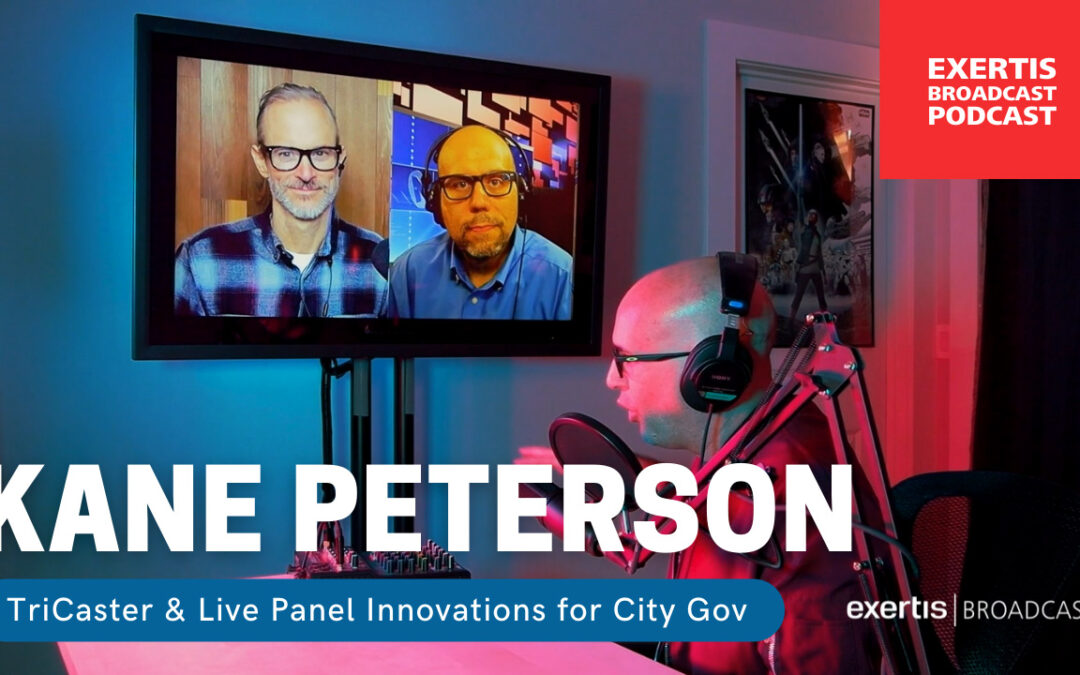
Exertis Broadcast Podcast with NewTek’s Kane Peterson! TriCaster® & Live Panel™ Innovations for City Government

This episode of the Exertis Broadcast Podcast (EBP) features Solutions for City Council using NewTek’s TriCaster® & Live Panel™ — with special guest Kane Peterson, Solutions Architect at NewTek. Kane joins us virtually from Chicago, and Rick Puleo, Sales & Applications Engineer at Exertis Broadcast, joins virtually from Washington state. Listen in on the lively discussion with Exertis Broadcast’s Nicholas Smith, VP of Technology and Jordan Friday, Sr. Content Producer are in the Northern California studio.
NewTek logo
Vimeo livestream to facebook
Why Use a TriCaster for City Council or Local Government?
  • Potentially Limitless sources
  • Ease of use (control Interfaces)
  • IP inputs (teams, Skype, Zoom)
  • Native NDI
  • Automation/Camera Control
  • Simple
  • Customization
What Should Be Considered When Choosing TriCaster?
  • Cameras types and placement
  • Number of council members or seats
  • Other sources of content
  • Video Destination? TV Stations,Web/On-demand
  • Who is running the TriCaster?
  • Who is running the agenda?
TC City Council cover

TRICASTER LOCAL GOV CONSIDERATIONS
Click image to download PDF

NewTek TriCaster connects with all sorts of gear such as those dicusssed in the podcast. Check out the Cinedeck + LivePanel tutorial – HERE.

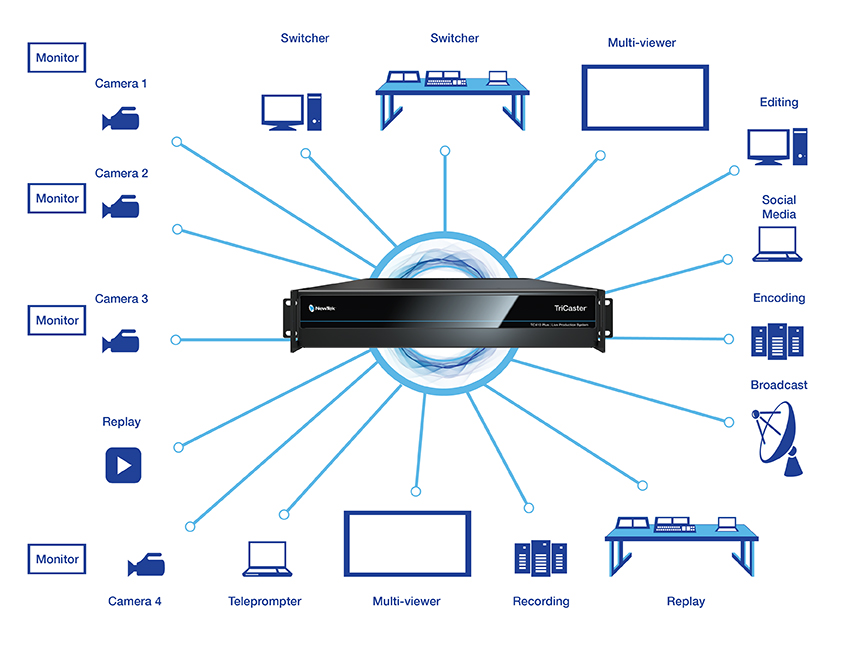
TriCaster TC410 Plus customized workflow
NewTek TriCaster® TC410 Plus

TriCaster® TC410 Plus is an integrated video production system designed to create multi-platform productions live and on-demand. Your shows will be polished, engaging to viewers through social and second-screen experiences, deliver revenue opportunities, and extend your brand.

NewTek LivePanel™

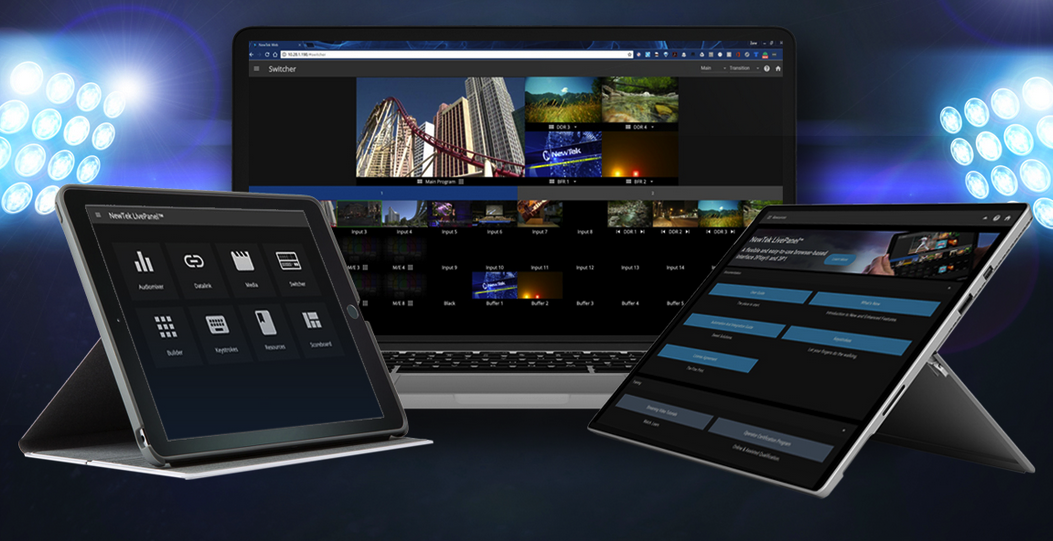
LivePanel is a flexible and easy-to-use browser-based interface for TriCaster® TC1,TriCaster® TC410 Plus, TriCaster® 2 Elite, TC Mini 4K, VMC, and 3Play® 3P1 that makes it easier for more people to have control of the live production process.

NewTek LivePanel UI
Add-Ons for Local Gov
AGENDA MANAGEMENT

Cloud Driven Solutions creates meeting and agenda management solutions that grow and expand with your needs. They are easy to deploy while being functionally intelligent.

With AgendaLink and AgendaLink Solo, your meeting needs are covered from start to finish including in room audio / video controls.

LIVE RECORDING

Cinedeck multi-channel recorders make multi-cam productions faster and smoother. We continue to design features with workflow flexibility in mind.

Our recorders support SDI, NDI, SRT and IP sources recording to a wide variety or codecs, wrappers, formats, and resolutions.